
Setting up ProPresenter Integration

ProPresenter Slide-Sync Integration

Deepen can connect directly to ProPresenter so you can continue using ProPresenter to present your slides while Deepen keeps your audience's slides synchronised on their phones.

The ProPresenter integration only needs to be set up once. Once connected, Deepen runs in the background while you present as normal.

Connect ProPresenter to Deepen


1. Open ProPresenter

Open ProPresenter on the computer you use to run your presentations.

2. Enable the ProPresenter network connection

In ProPresenter:

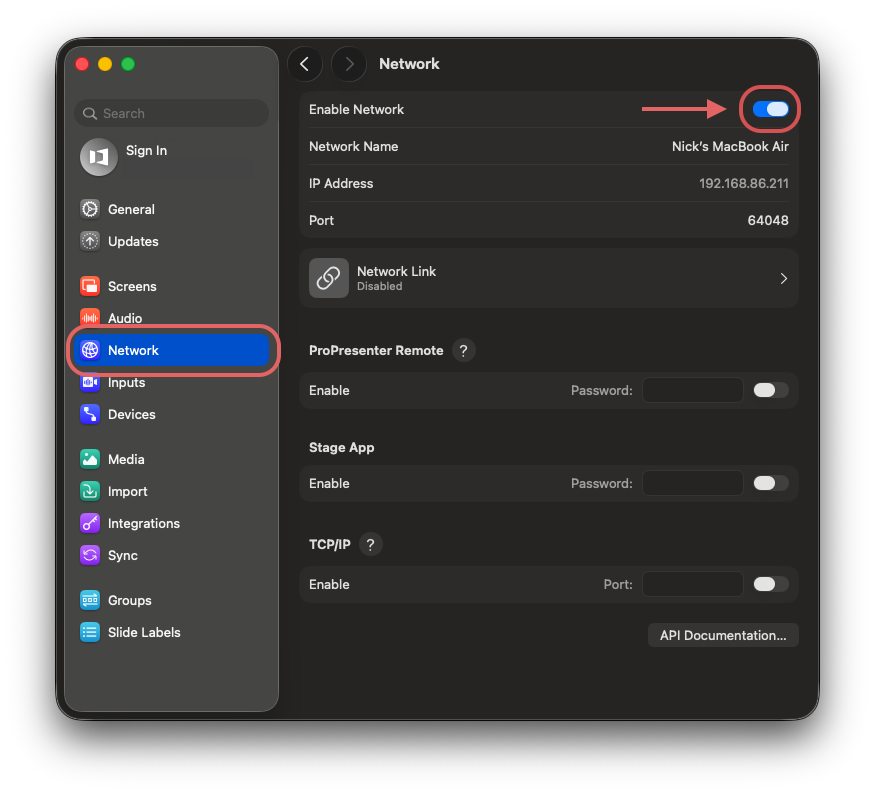
  1. Go to Settings > Network
  2. Turn on Network
ProPresenter Network Settings
3. Install Deepen ProPresenter Connect

Download and install Deepen ProPresenter Connect on the computer you are running ProPresenter:

Download Deepen ProPresenter Connect (Mac/Windows)


Open the app once installation is complete.

4. Connect to ProPresenter

In the Deepen ProPresenter Connect app:
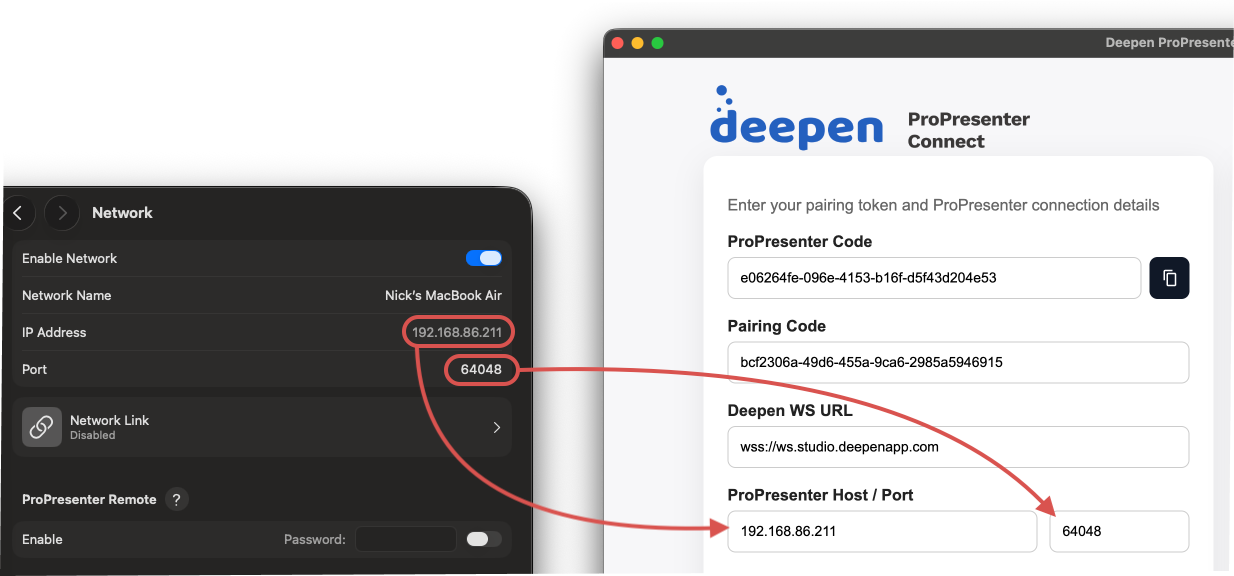
  1. Enter the Port number from ProPresenter
  2. Enter the IP Address for the computer running ProPresenter
  3. Click Save Config
ProPresenter Network Settings and Deepen ProPresenter Connect
5. Connect your Deepen account
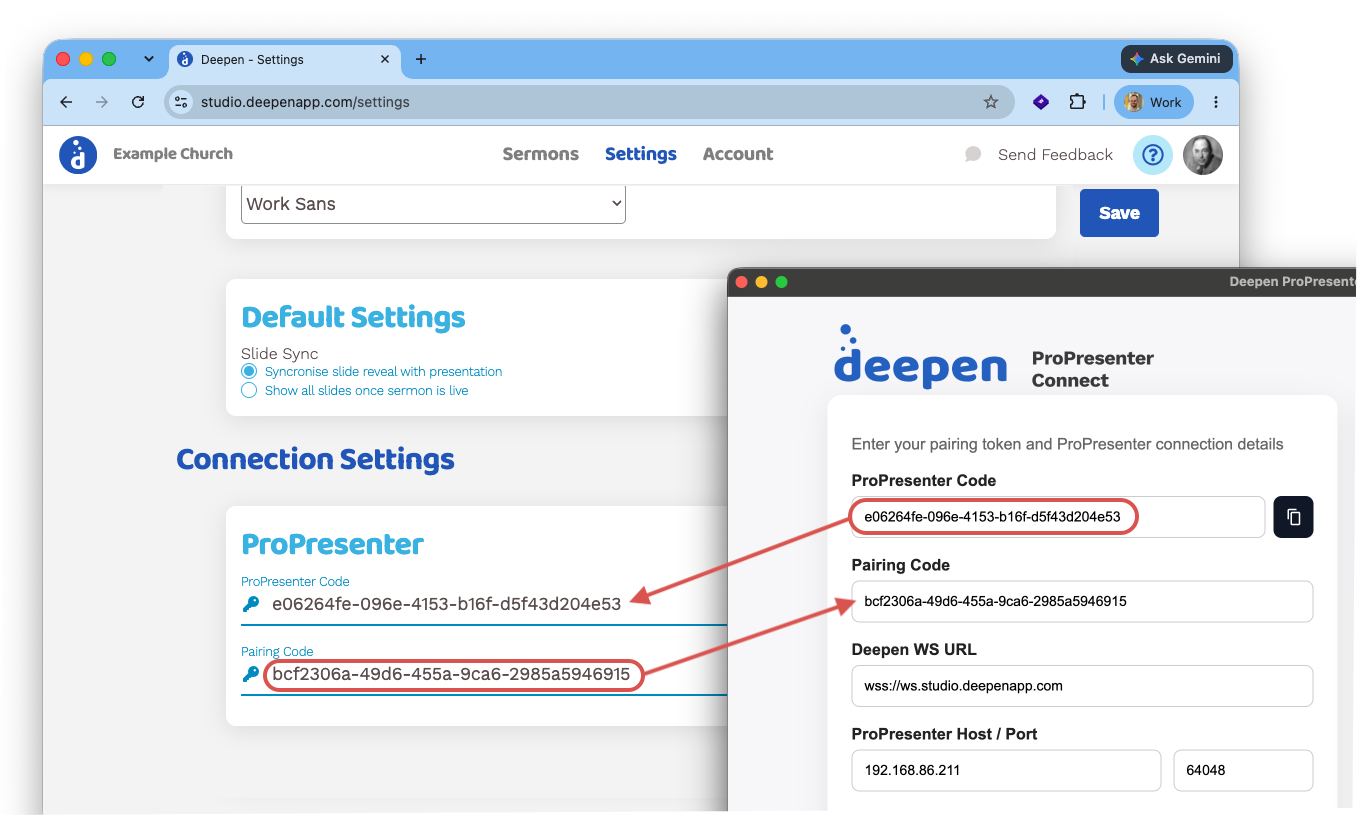
  1. Copy the ProPresenter Code displayed in the Deepen ProPresenter Connect app
  2. In Google Chrome, login to Deepen Studio and go to Settings > Connection Settings
  3. Paste the ProPresenter Code from the Deepen ProPresenter Connect app.
  4. Deepen Studio will display a Pairing Code. Copy this code.
  5. Click Save on the Deepen Studio Settings screen
  6. Go back to the Deepen ProPresenter Connect app and paste the Pairing Code into the app and click Save Config.
Deepen Studio and Deepen ProPresenter Connect

The connection status should now show Yes for all connection checks.

The status indicator is useful whenever you want to check that Deepen and ProPresenter are connected and communicating correctly.

If the connection isn't established, try restarting the Deepen ProPresenter Connect app and check the status again.
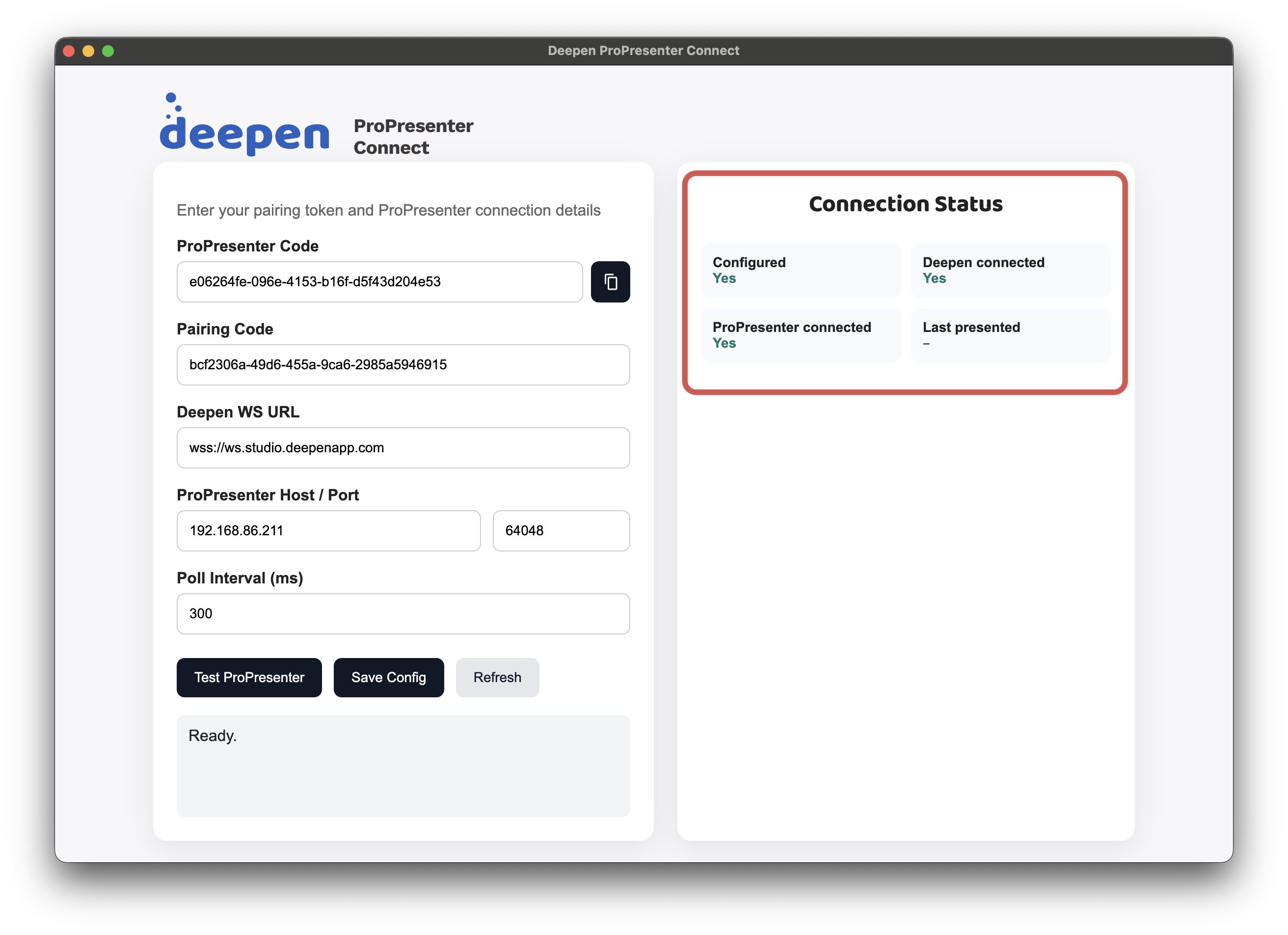
Deepen ProPresenter Connect - Connection Status

You're ready to use ProPresenter with Deepen


Once the connection is working, you can create presentations in Deepen Studio and import your slides from ProPresenter.

After you import and publish your presentation, there's nothing else you need to do. Deepen ProPresenter Connect will run in the background and keep Deepen synchronised while you present.

You only need to complete the setup process once.

How to run a presentation with ProPresenter