

Once ProPresenter is connected to Deepen, you can continue to run your presentation in ProPresenter as normal.
Deepen ProPresenter Connect works in the background, automatically revealing your slides in the Deepen app so your audience can follow along in real time.
Before your presentation, make sure your ProPresenter slide deck is complete and in the correct order.
This could be for a church service, conference, training session or another type of presentation.
Tip: We recommend using Google Chrome when working in Deepen Studio.
In Deepen Studio:
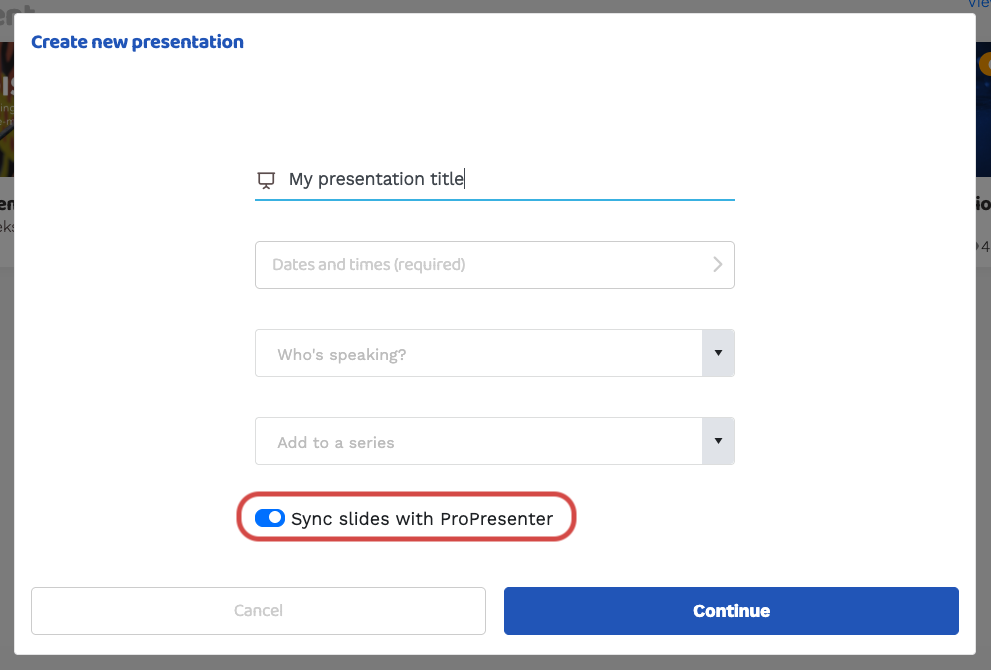
1. Click New and give your presentation a name. Add a speaker or series if required.
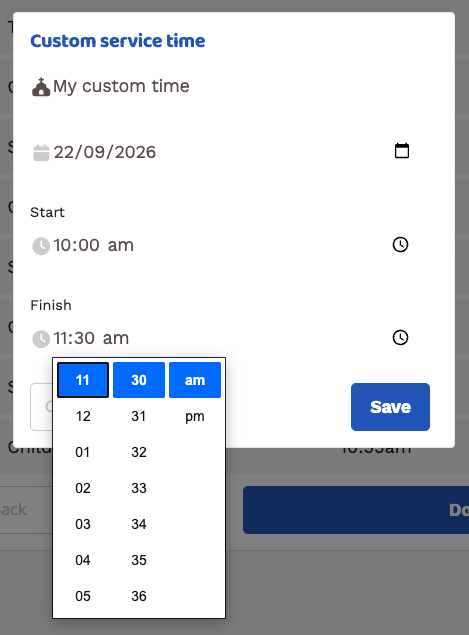
2. Select from the available dates/times or Add a custom time. Ensure you set the start and end time.
3. Switch on Sync slides with ProPresenter and click continue.
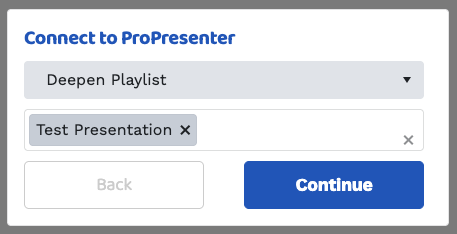
4. From the Connect to ProPresenter screen, you can select from your playlists and presentations available in ProPresenter. Select which presentation you want to import and present to Deepen app.
5. Select the slides you want to import. Select which is the title slide if other than the first slide. Click Import and Publish
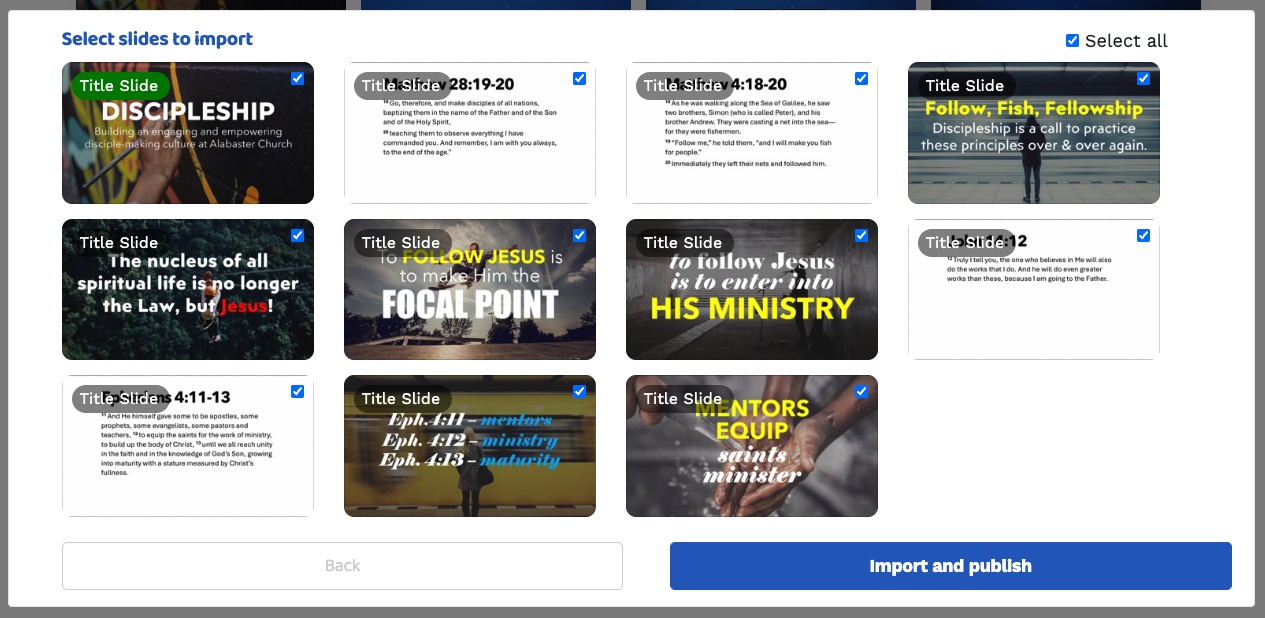
Your slides will import and everything all set to live-sync your presentation to the Deepen app.
Tip: It's a good idea to check the presentation in Deepen Studio before you start to make sure everything is correct.
If you make changes in ProPresenter before the presentation has gone live, you can use Tools > Reimport in Deepen Studio to update the slides.
Open the Deepen ProPresenter Connect app and check the connection status.
The status indicator lets you confirm that Deepen and ProPresenter are connected and communicating correctly.
You can check the status at any time, including during your presentation.
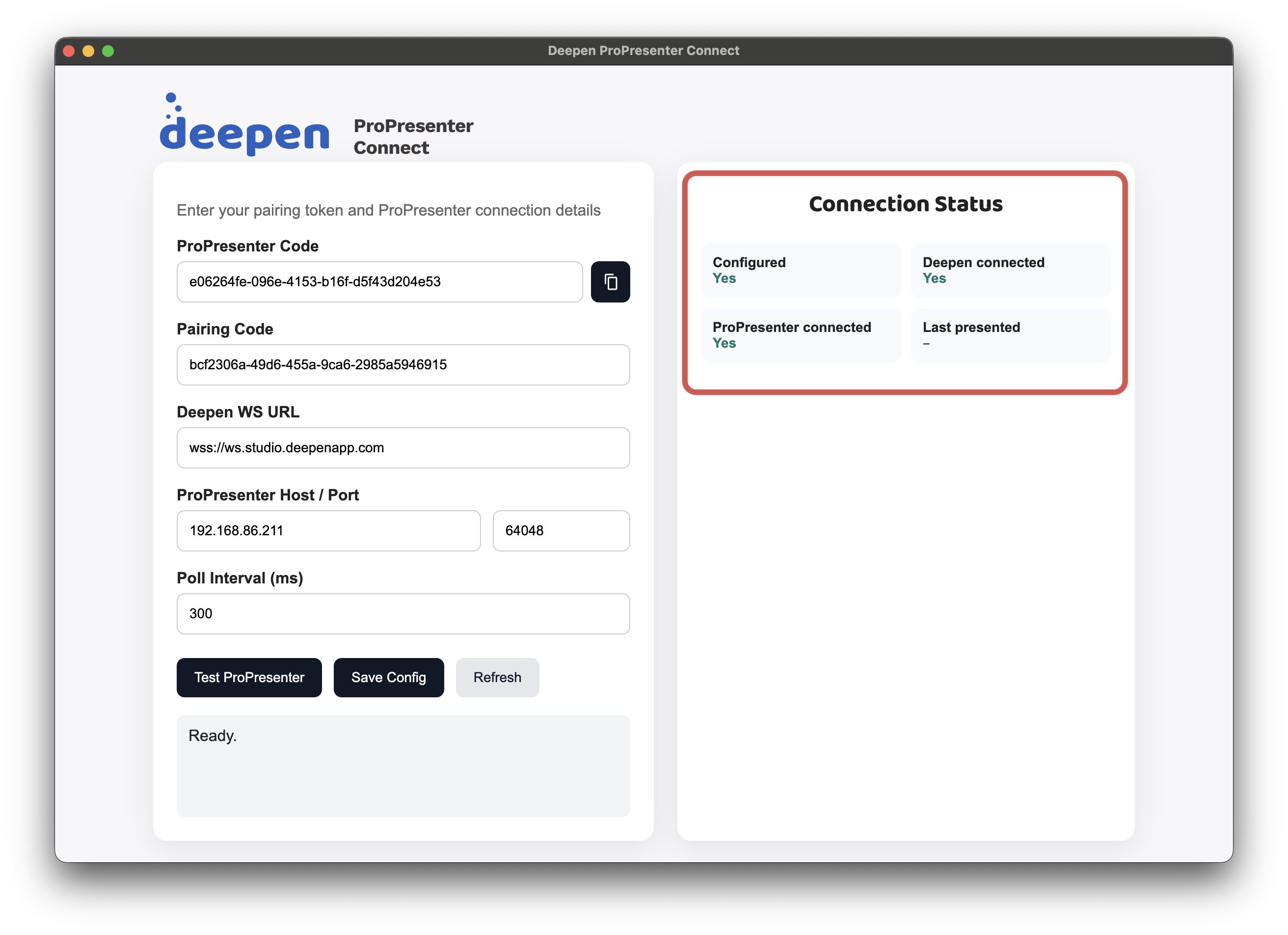
Once ProPresenter and Deepen are connected, you can present using ProPresenter as you normally do.
Deepen works in the background, keeping your audience's slides in sync with your presentation.
Open the presentation in ProPresenter and run it as you normally would.
Advance through your presentation using ProPresenter as normal.
As you reveal slides in ProPresenter, Deepen automatically makes those slides available to your audience.
This means people can follow along with your presentation on their phone in real time, without you needing to operate Deepen separately.
There's no need to operate Deepen Studio while you're presenting.
If you need to skip ahead during your presentation, that's okay.
Deepen will automatically release any intervening slides so your audience stays in sync with your presentation.
How you update your slides depends on whether the presentation has already gone live.
If you change the slide order, add slides or make other changes to your ProPresenter presentation, you can reimport the slides into Deepen.
In Deepen Studio:
This replaces the slides in Deepen with the current slides from ProPresenter.
Once a presentation has gone live, the Reimport option is no longer available.
This is intentional. Reimporting replaces all of the slides in a presentation, which is not possible once people have already participated in the presentation.
For example, if you're running two church services and want to make changes between the first and second service, there are two options.
For a small change, such as correcting a typo:
This allows you to update the individual slide without replacing the whole presentation.
For larger changes, such as removing, replacing or reordering several slides, create a new presentation for the next session.
For example, between two Sunday services:
This keeps the original presentation and its slides available to people who participated in the first service, while giving the second service the updated presentation.
After the event, you can unpublish one of the presentations so that both aren't visible in the Deepen app.
Note: People who have already viewed a presentation will still be able to access their notes, even if that presentation is later unpublished.
If you're running the same presentation more than once, check the connection status in the Deepen ProPresenter Connect app before you start.
This confirms that Deepen and ProPresenter are connected and ready to go.
If Deepen isn't updating when you change slides in ProPresenter:
For further help, please contact Deepen Support